This page does one thing: take you from an empty setup to “the companion can answer from your diary.” The order is fixed — keys, models, confirm RAG, write one entry, then ask.
Screenshots are from the Chinese desktop UI. Android uses the same menu names; open Settings from the bottom tab.
Sync, TTS, web search, MCP, custom companions, and memory rings are out of scope. You can skip API setup during onboarding and come back here.
BaiShou does not host your keys. You need two kinds of models: one for chat, and one that turns diaries into searchable vectors.
| Job | Where to get it |
|---|---|
| Chat, summaries, session titles | DeepSeek Platform |
| Embeddings (RAG) | SiliconFlow |
One provider that offers both chat and embeddings is fine — then you only configure one. The walkthrough below uses DeepSeek + SiliconFlow, which is a common pairing.
Click System settings at the bottom of the sidebar. If you already pinned Provider management to the sidebar, you can open that directly.
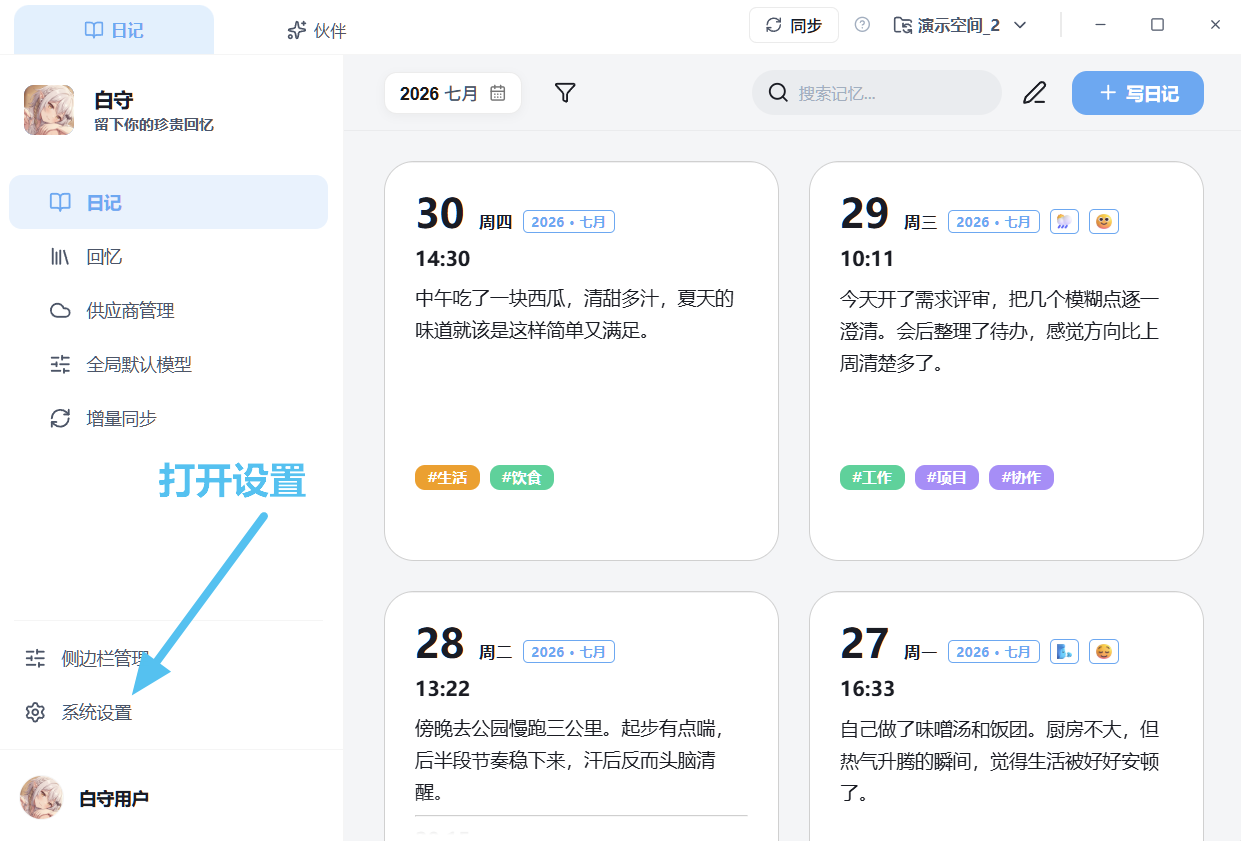
Bottom of the sidebar: System settings. New installs may not show provider entries in the main sidebar, so Settings is the reliable path.
Open the DeepSeek Platform, go to API keys, and click Create API key. The full key is shown only once at creation. Copy it, then paste it in BaiShou.
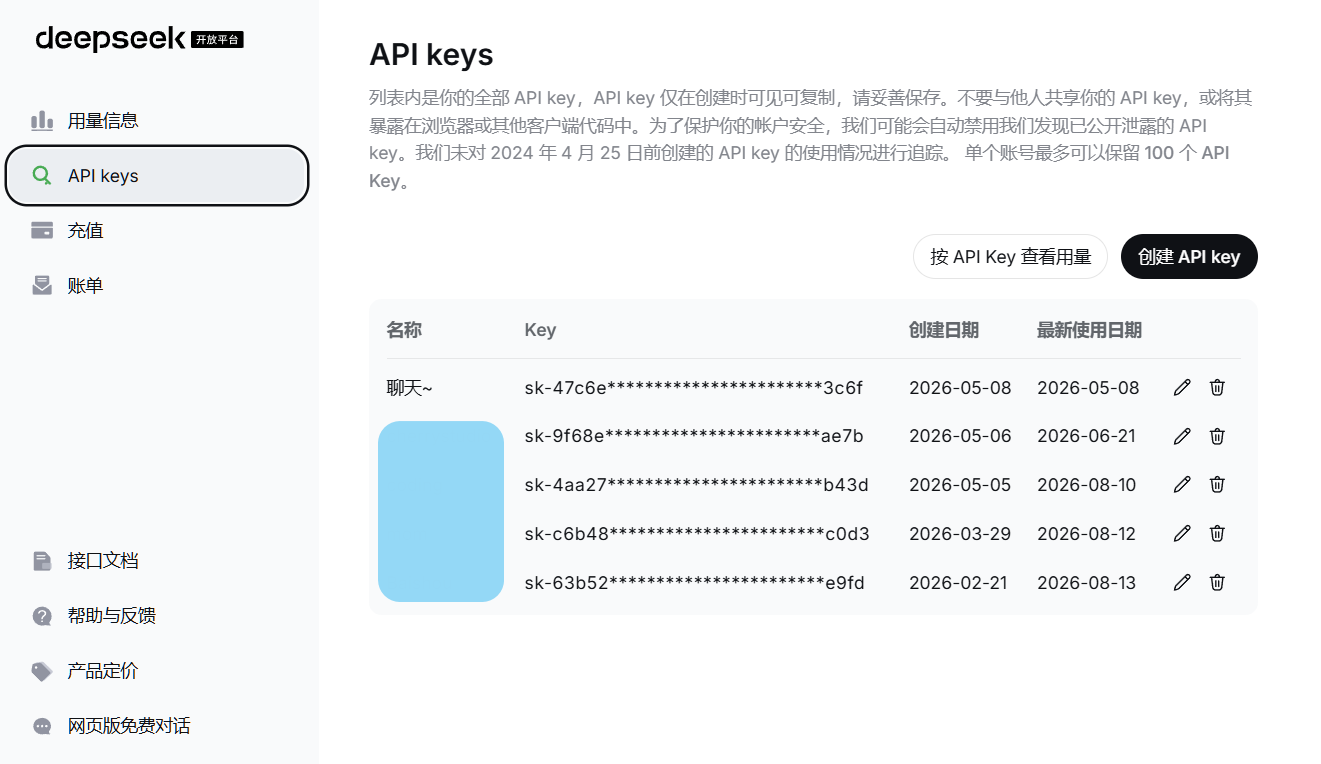
Create the key in the DeepSeek console. Never share the full key.
Open Settings → Provider management and select DeepSeek on the left.
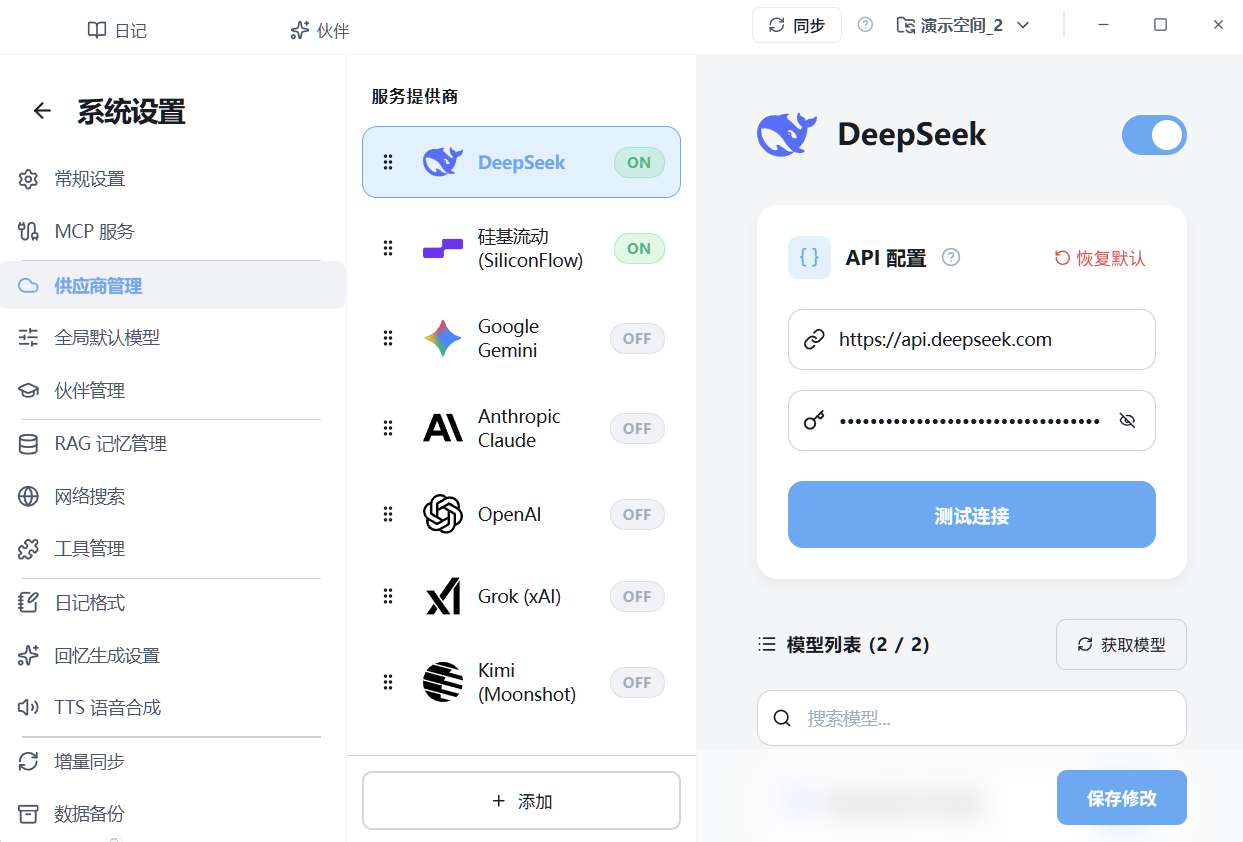
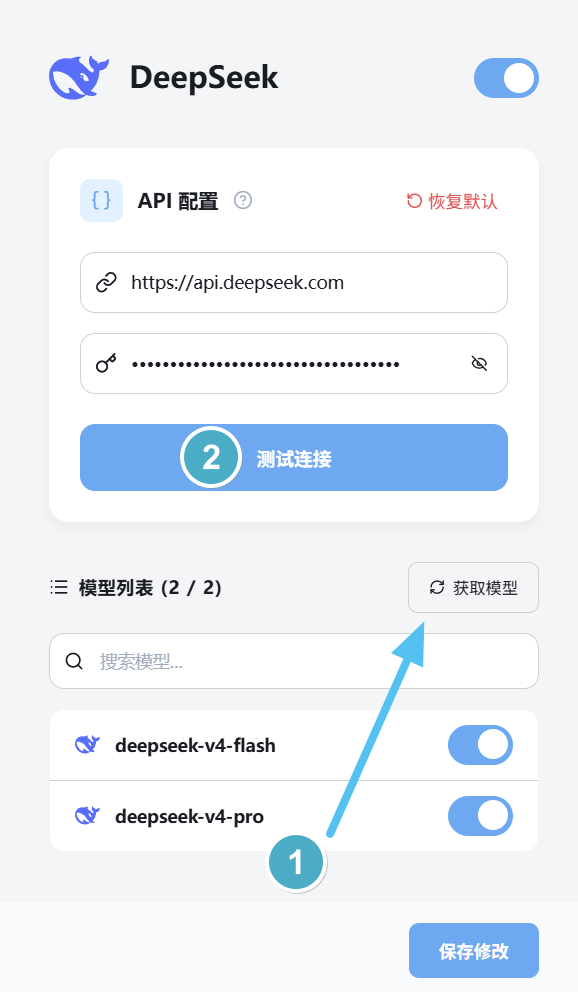
Follow the 1 and 2 on the screenshot: fetch and enable models, then test. An empty list means the test has no chat model to call.
Open SiliconFlow, complete identity verification, then create a key under API Key in account management.
You enable the embedding model later inside BaiShou. You do not turn on RAG on the website.
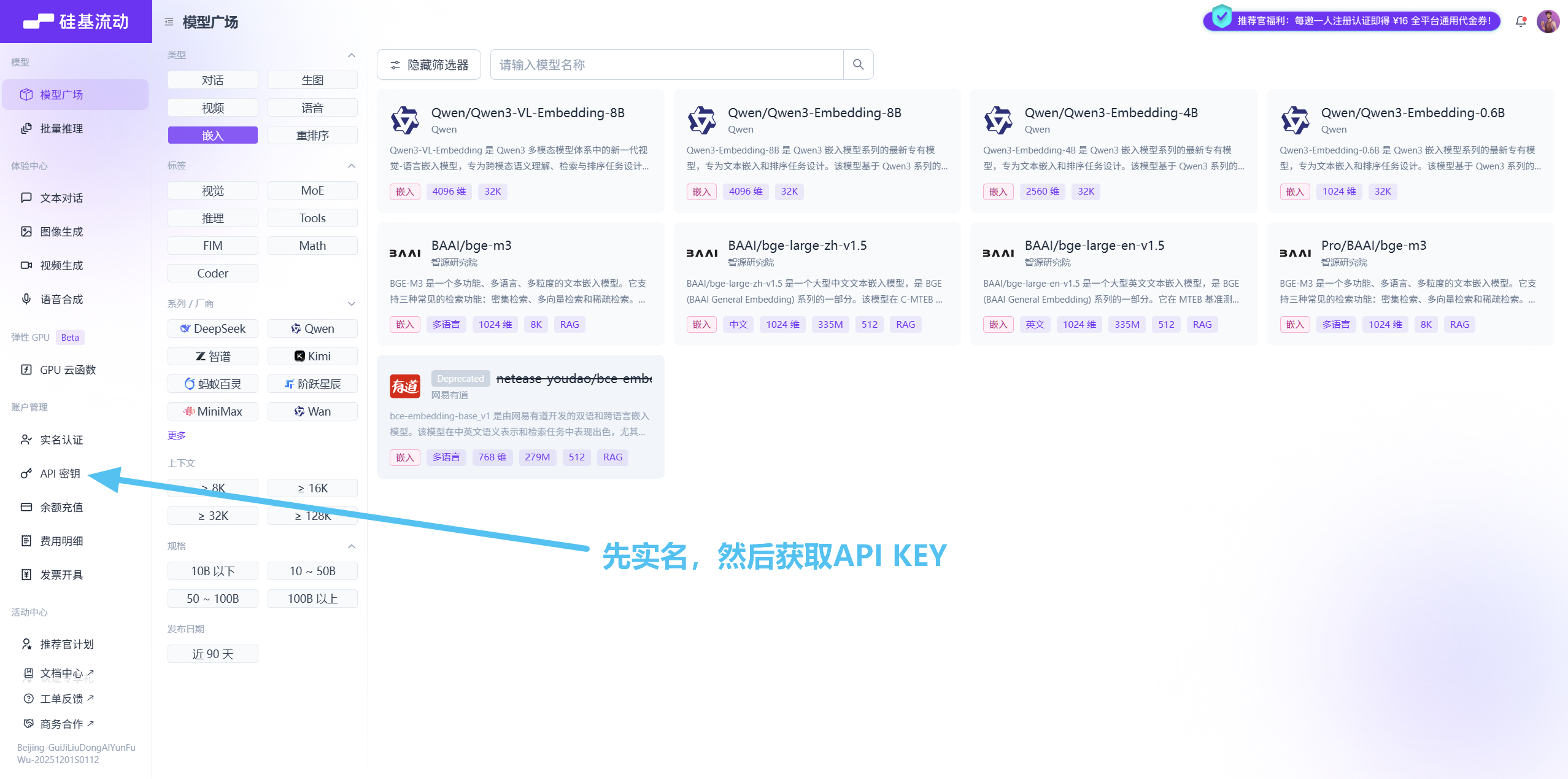
Verify first, then open API Key. The model gallery is only a catalog; enabling happens in BaiShou.
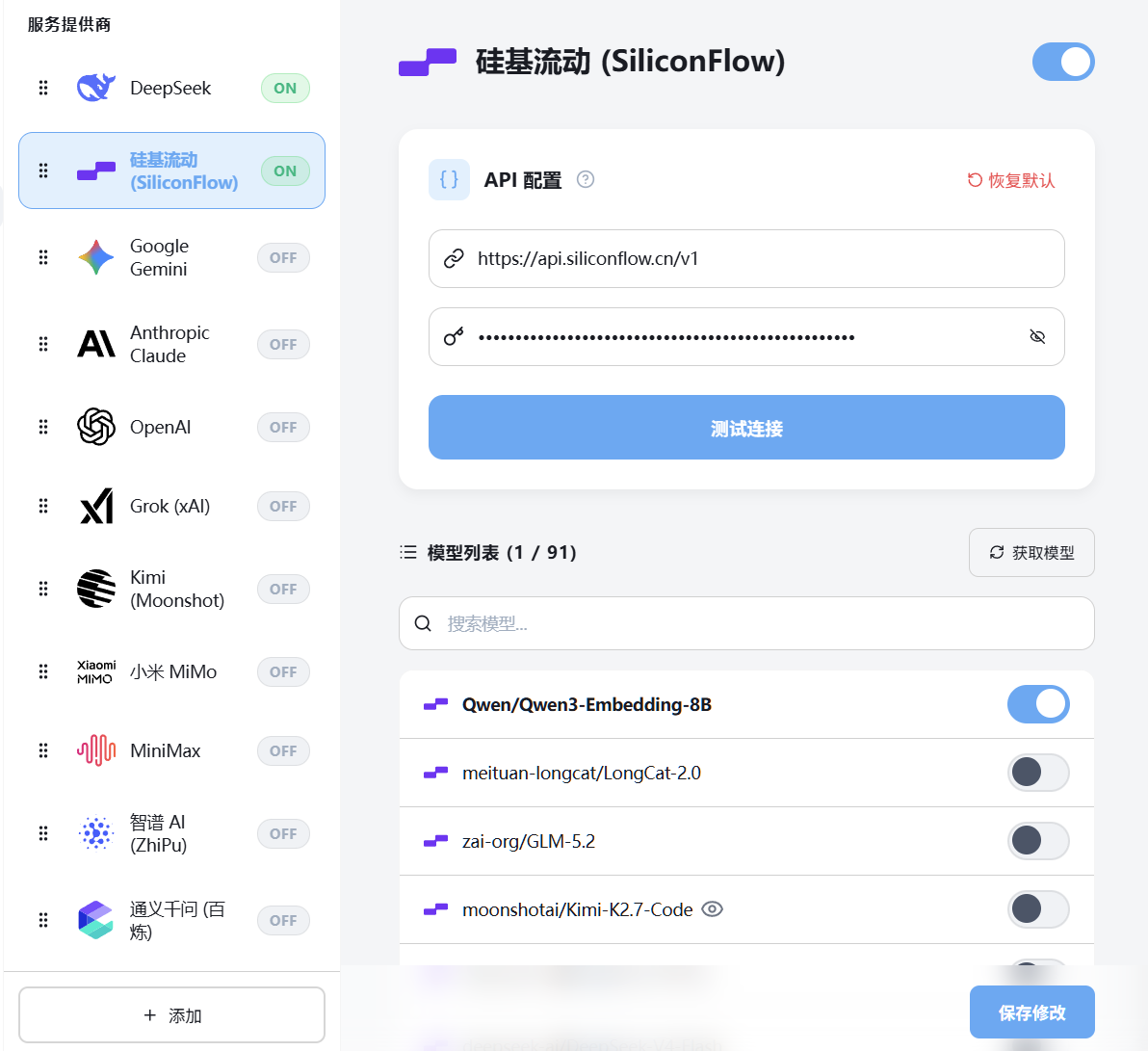
Back in Provider management, select SiliconFlow and repeat: switch on → paste the key → Fetch models → enable only an embedding model → Save changes.
The list can be dozens or hundreds of models. Search for names containing embed / embedding, for example Qwen/Qwen3-Embedding-8B. You do not need to enable chat models here.
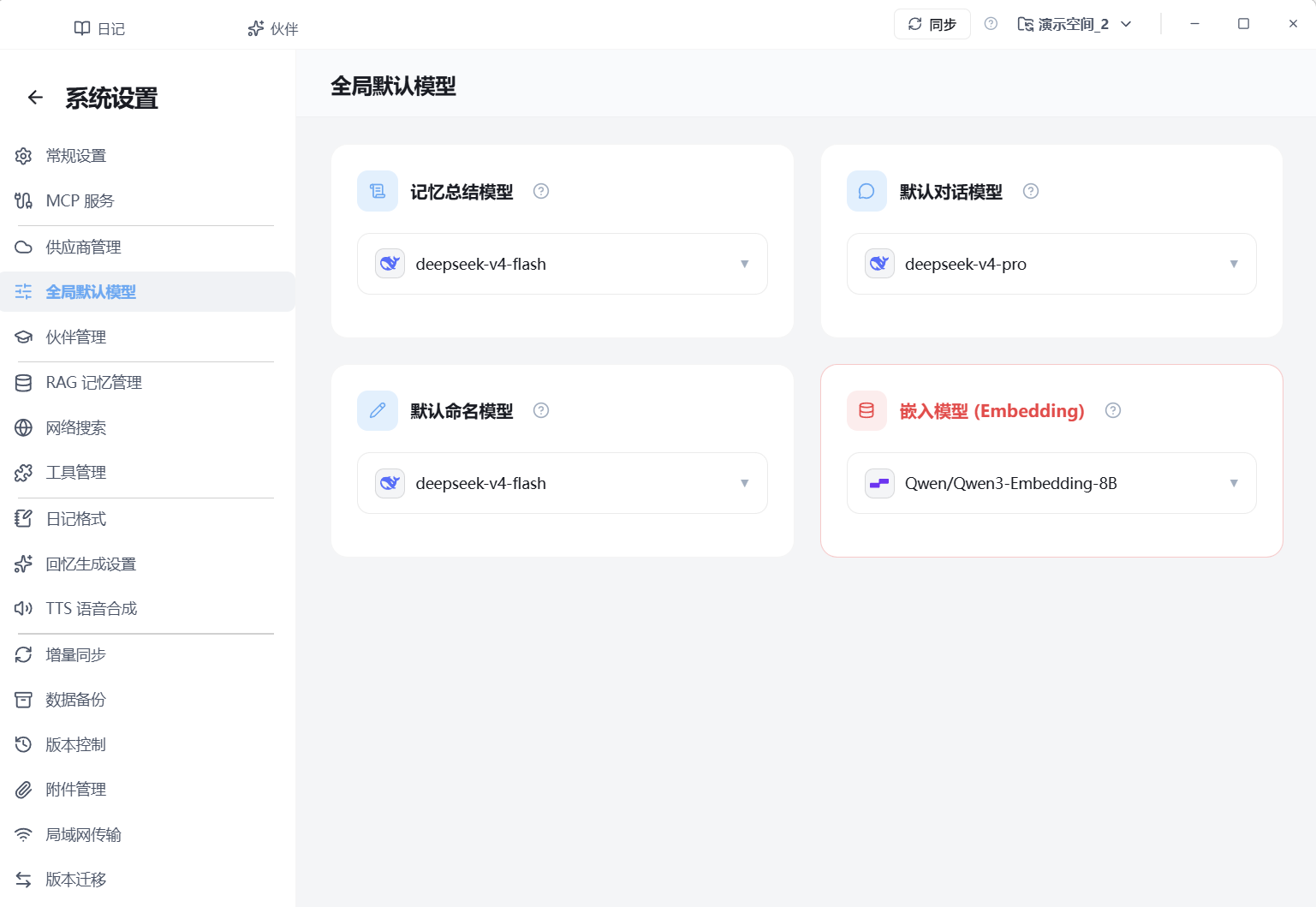
Open Settings → Global default models. Only models you enabled on a provider show up here.
| Card | Required? | What to pick |
|---|---|---|
| Default chat model | Required | A DeepSeek chat model |
| Embedding model | Required | The SiliconFlow embedding model |
| Memory summary model | Recommended | Can be the same provider as chat |
| Default naming model | Optional for later | A small model is enough for session titles |
Click the selector on each card. The embedding card is the one people miss; the UI also highlights it.
TTS lives on another page — skip it for now. If you see Switch embedding model?, new users with no old vectors can confirm. Do not switch casually once diary vectors exist; see RAG memory.
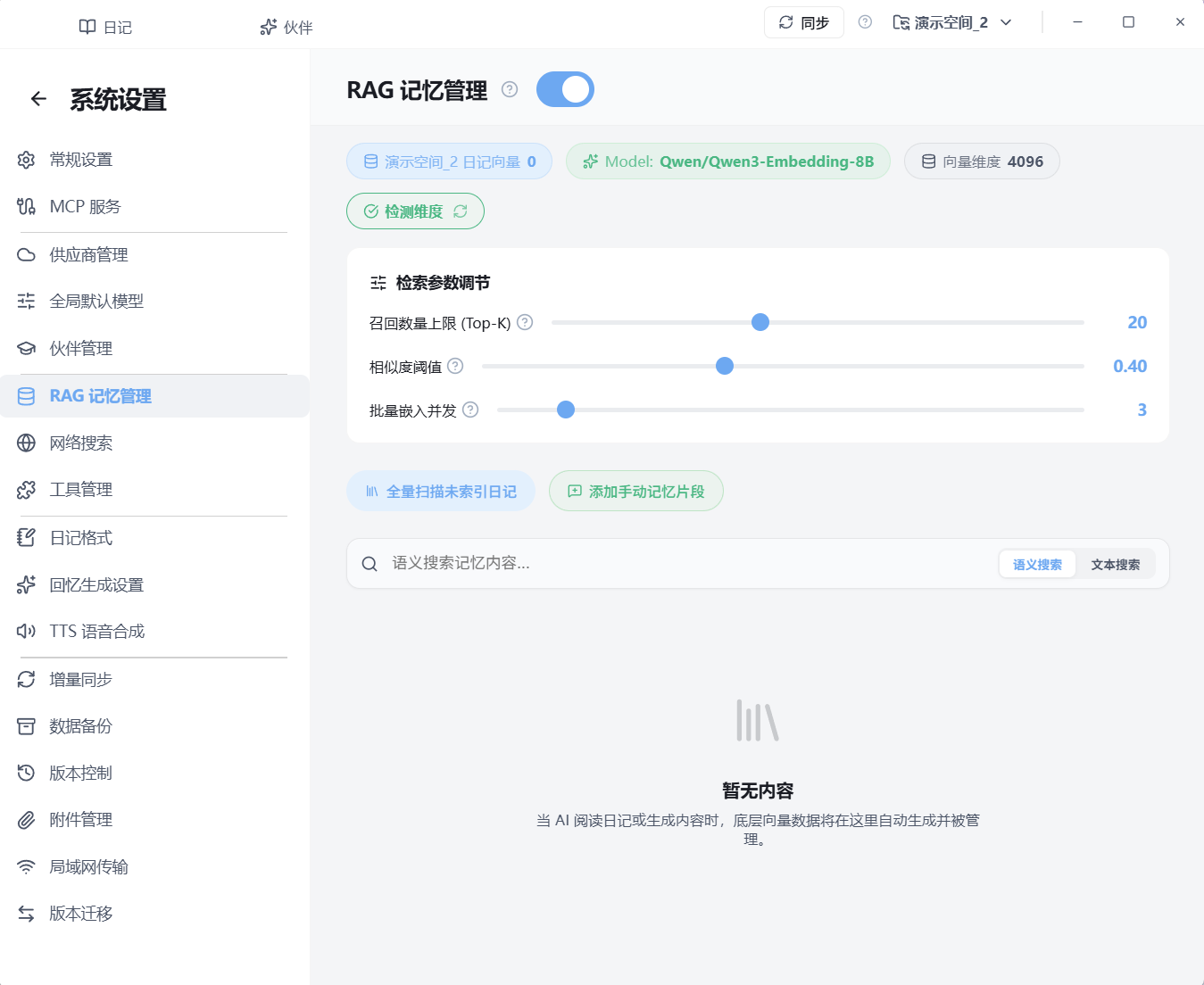
Open Settings → RAG memory.
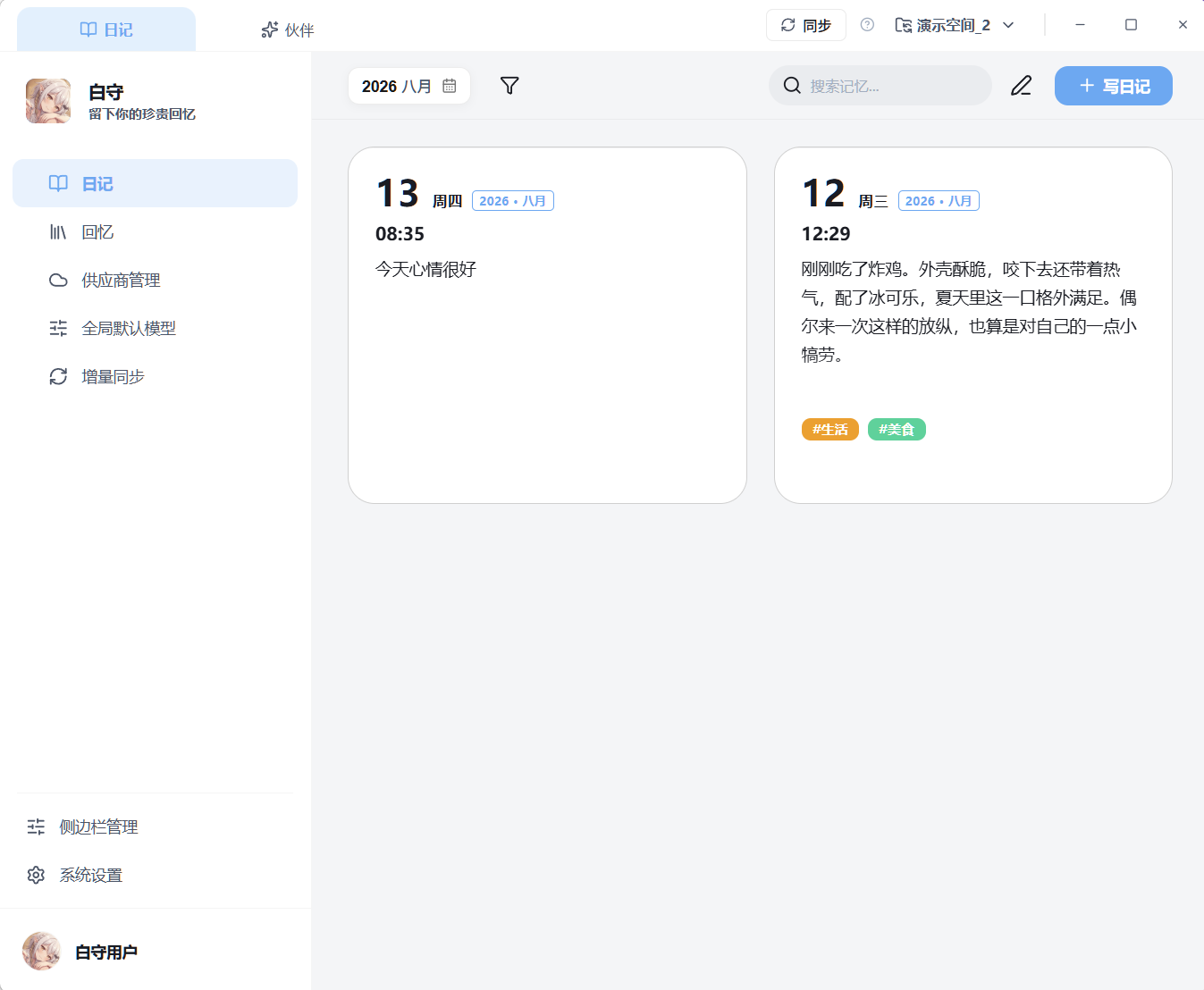
Close settings and click + Write diary. Leave something you can ask about later — what you ate, where you went, how you felt — then save.
Saving tries to embed automatically. If that fails, the UI tells you to finish the job on the RAG page.
Open RAG memory again. If Diary vectors is still 0, click Full scan of unindexed diaries. When the list below shows the diary and Diary vectors is greater than 0, you are done.
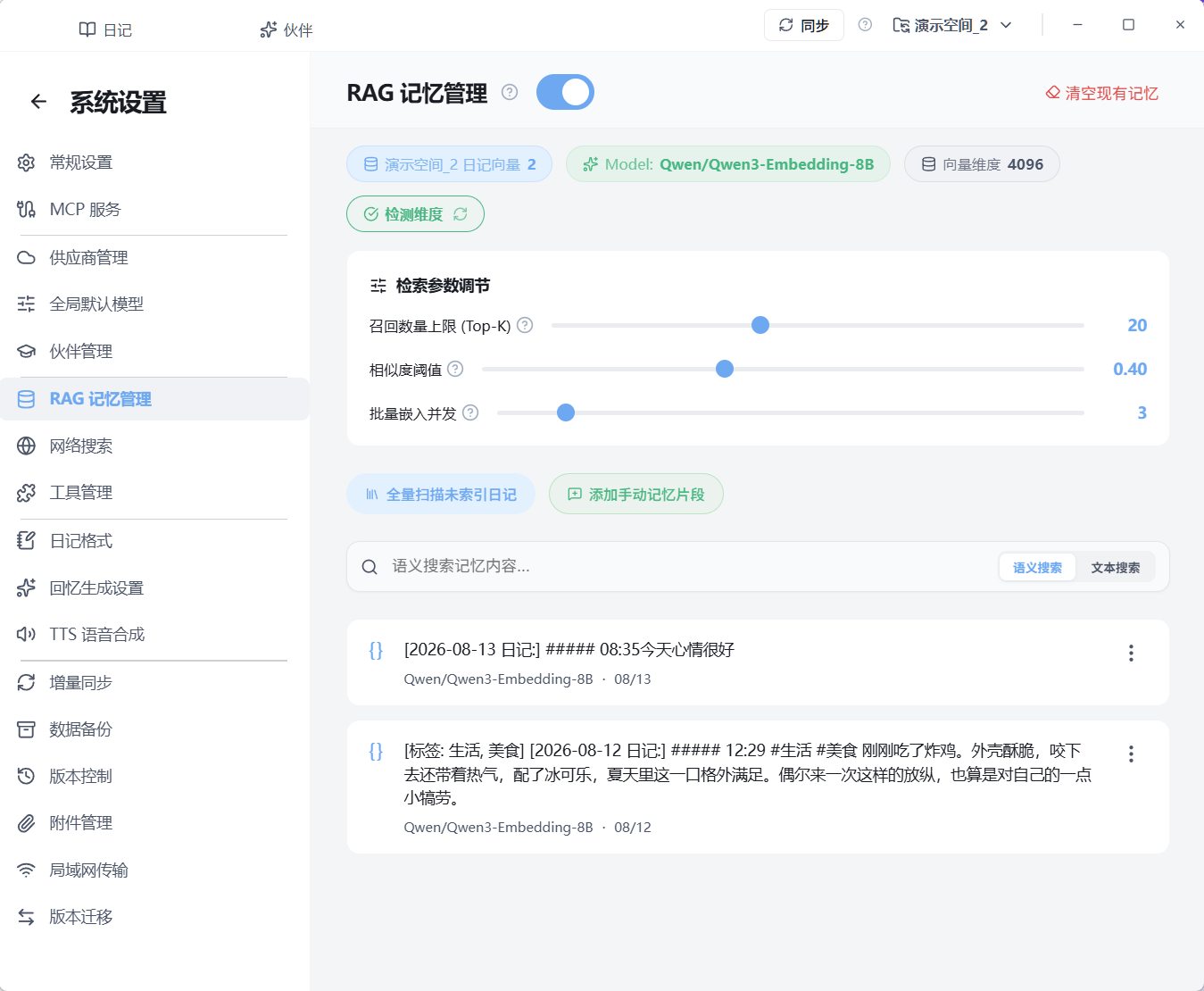
You can also switch the search box to Semantic search and try a word from the diary. A hit means embeddings are working.
Open the Companion tab. The default companion is Latte, type Intimate companion. Start a new chat and ask about the diary, for example “What have I eaten lately?”
If the reply expands Diary search and Semantic search, retrieval is working.
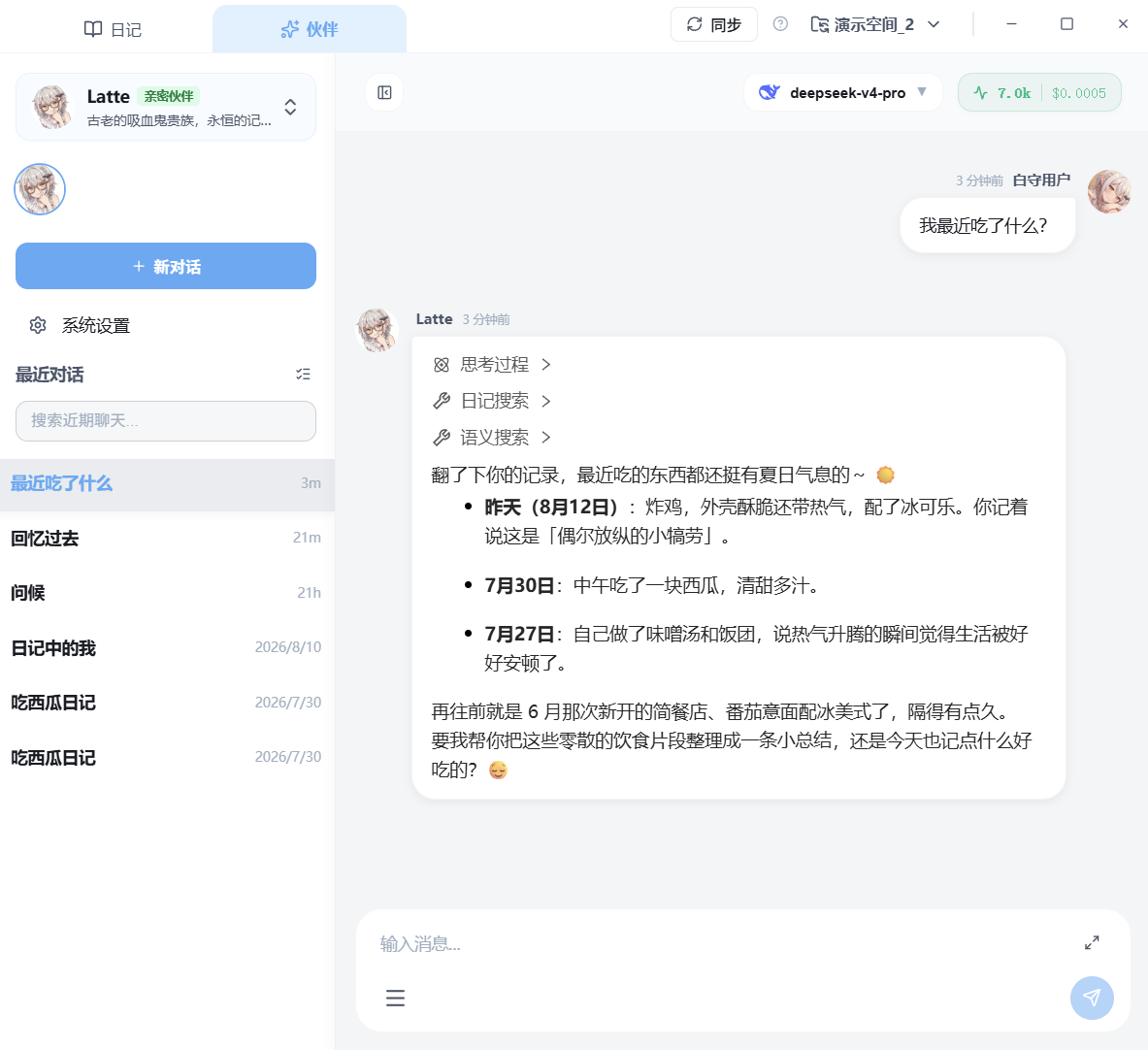
The chat model needs tool calling. Newly written vectors can take a few seconds; if nothing comes back, ask again or check the vector count on the RAG page.