First turn on MCP in BaiShou and copy the URL that ends with /mcp. Keep BaiShou running.
Click Experts · Skills · Connectors in the sidebar, then Connectors.
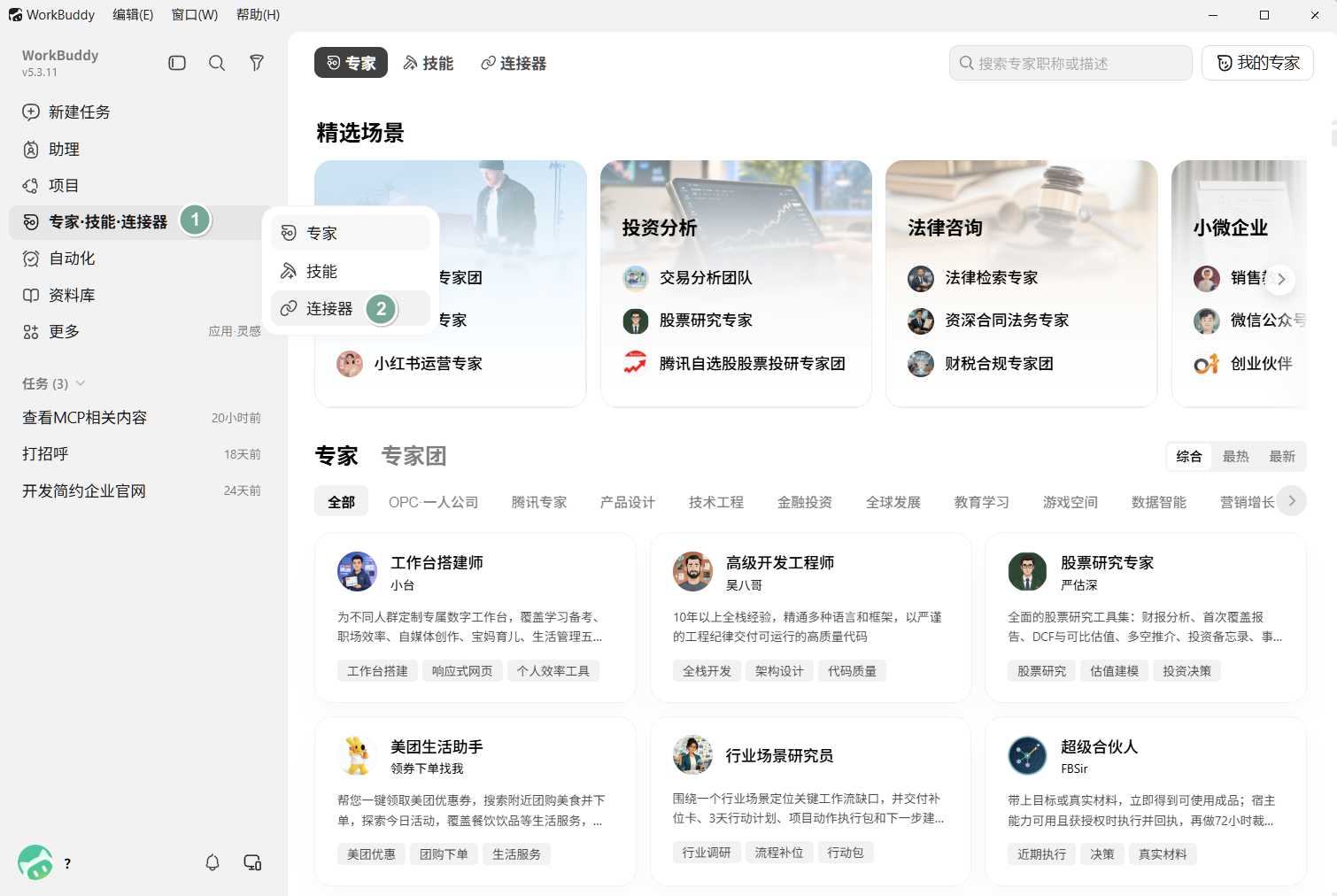
Click Custom connector in the top right.
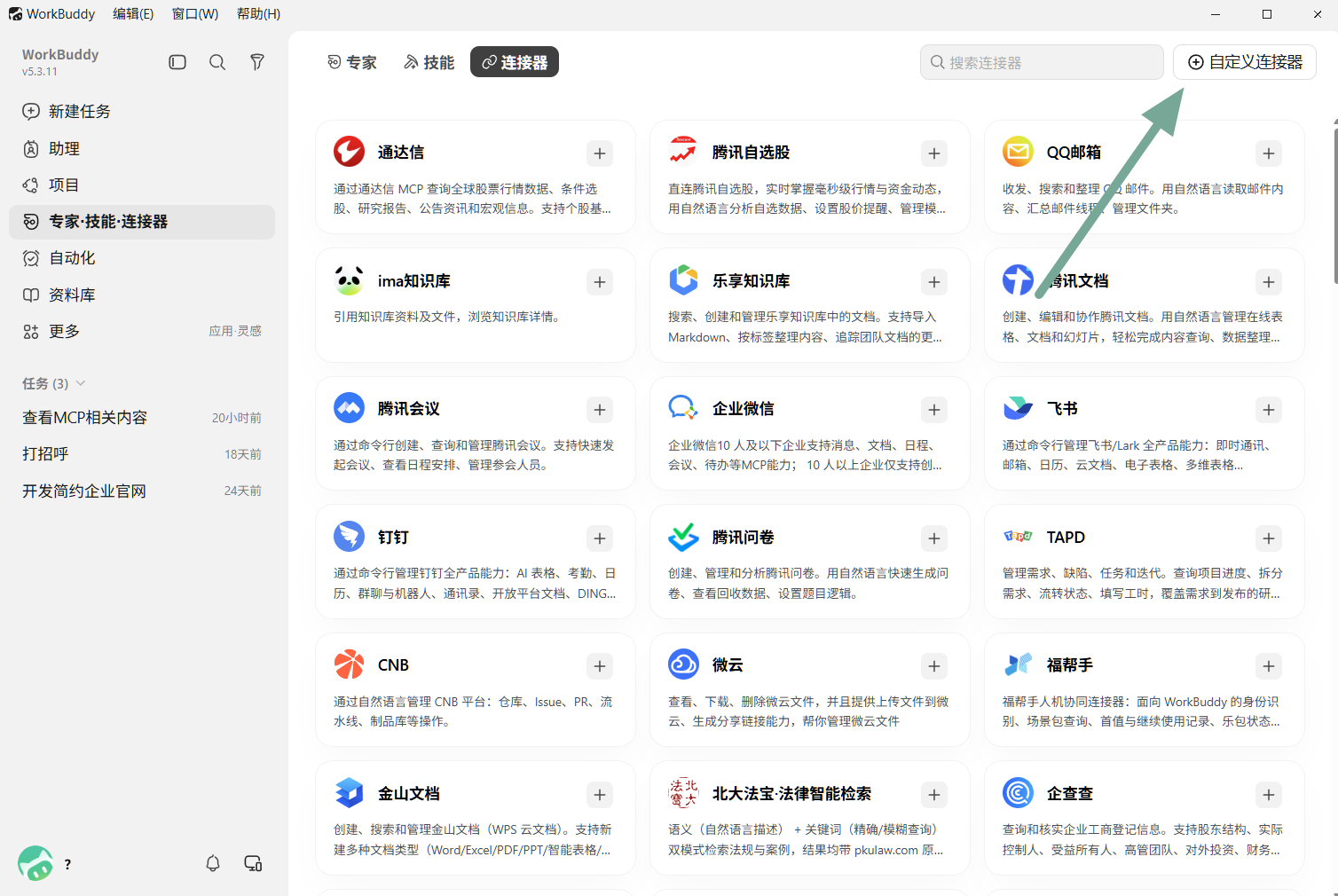
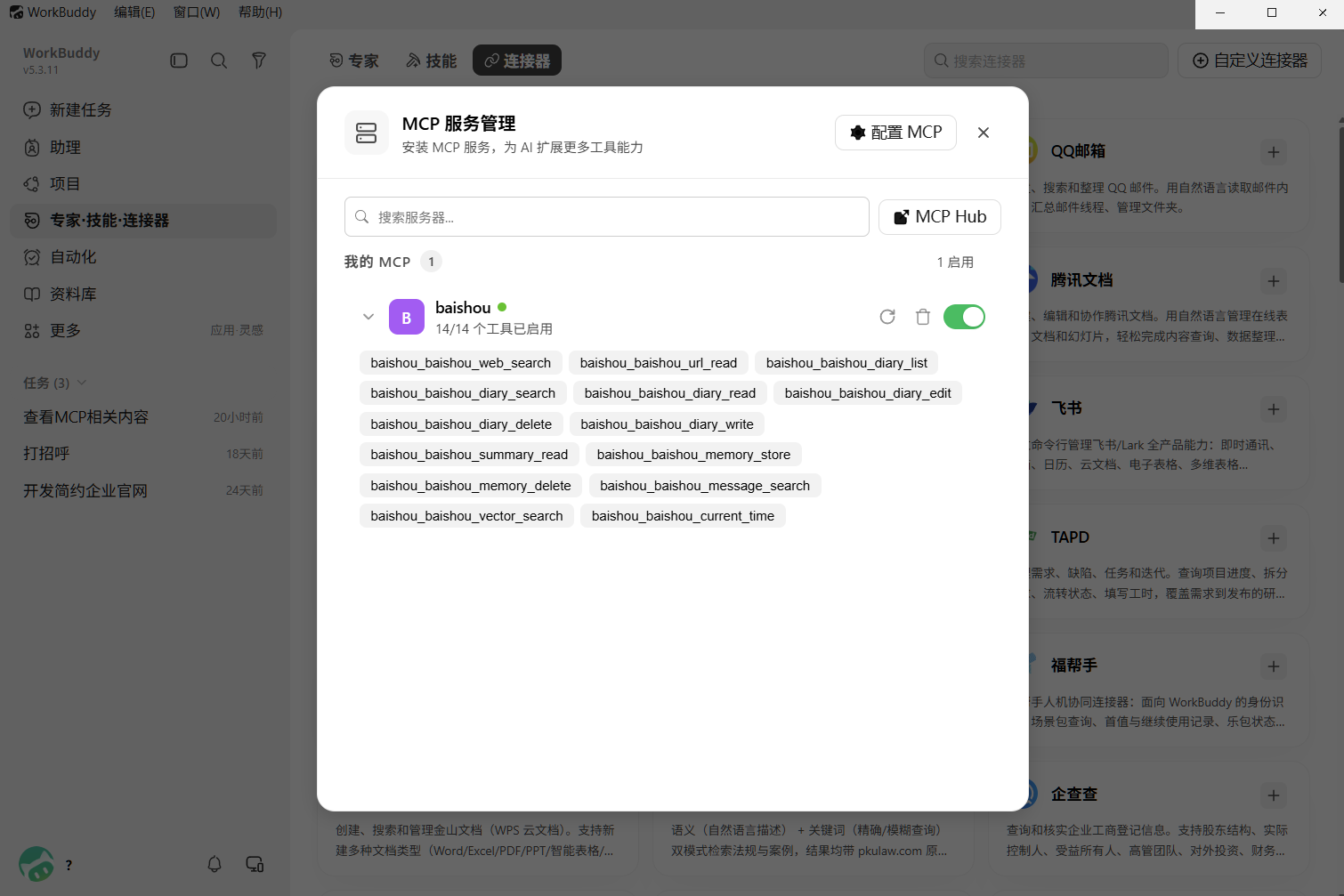
In MCP Service Management, click Configure.
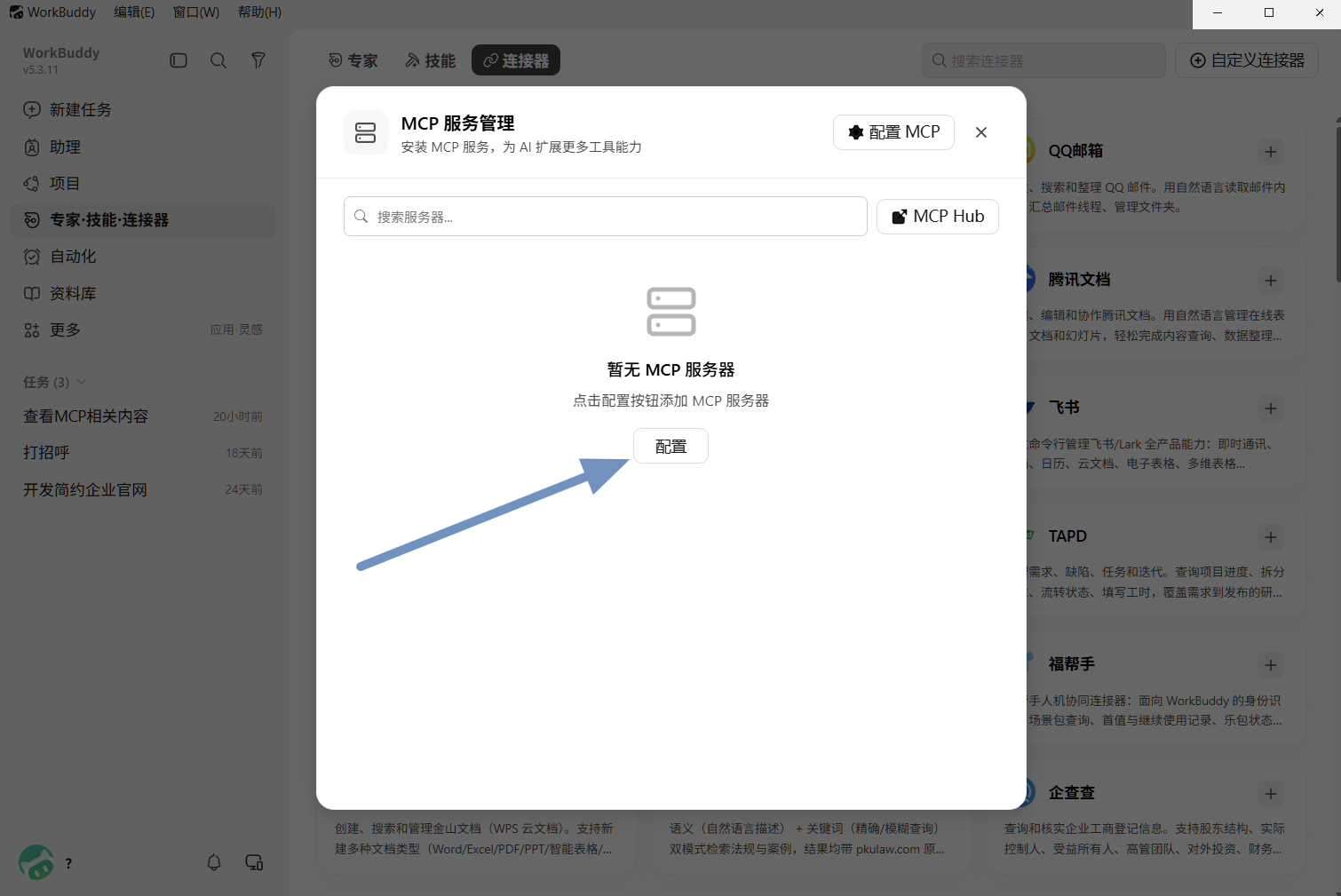
The editor opens the local mcp.json. Add BaiShou with the URL from your MCP page, then Save:
{
  "mcpServers": {
    "baishou": {
      "url": "http://127.0.0.1:31004/mcp"
    }
  }
}
Same computer: 127.0.0.1. If BaiShou authentication is on, add headers.Authorization.
Back in MCP Service Management, BaiShou should be enabled with 14/14 tools enabled.
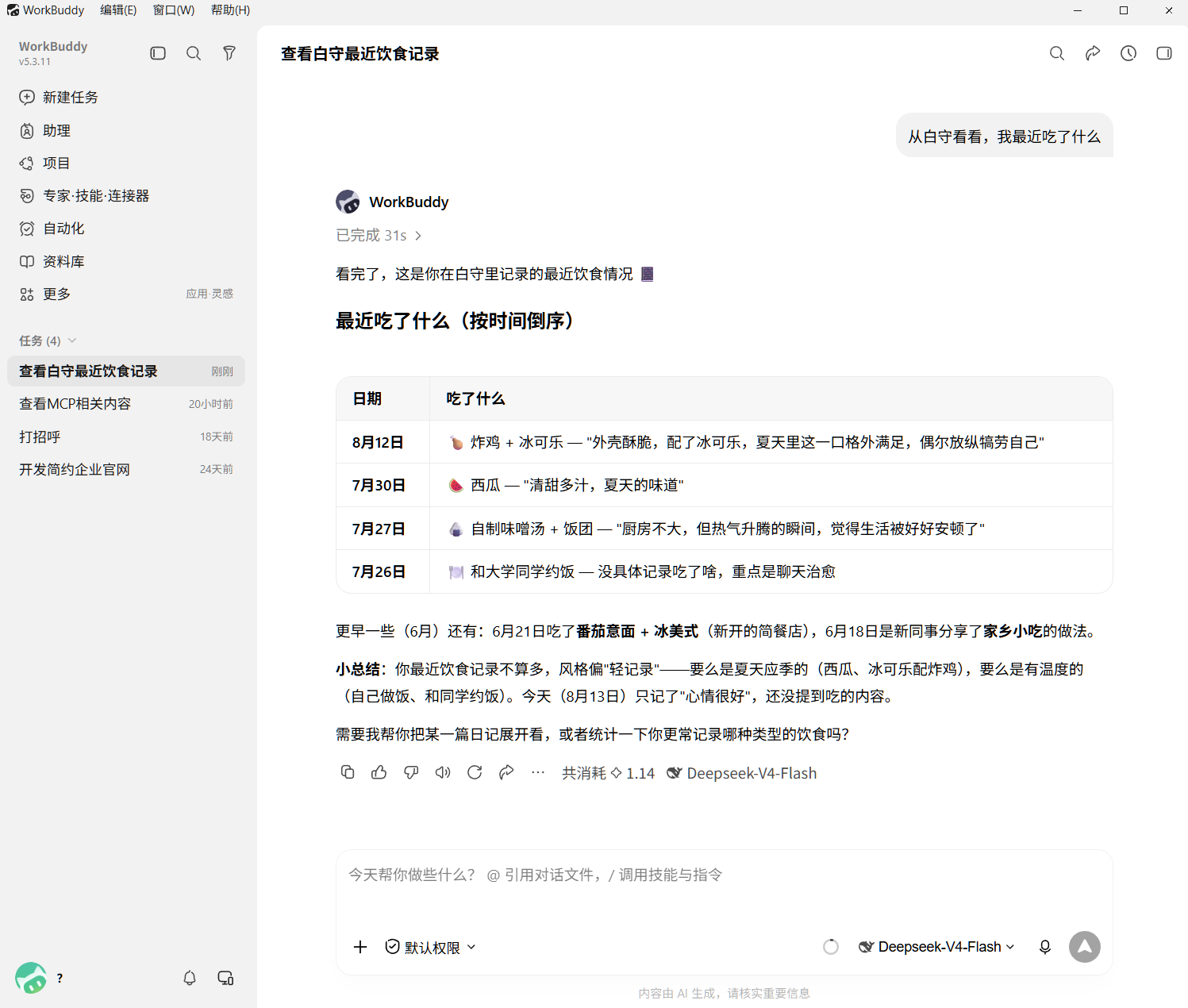
In the assistant chat, say “check BaiShou, what have I eaten lately?” If it lists meals from your diary, you are connected.