First turn on MCP in BaiShou and copy the URL that ends with /mcp. Keep BaiShou running.
Click Customize in the left sidebar, select the MCPs tab, then New MCP Server.
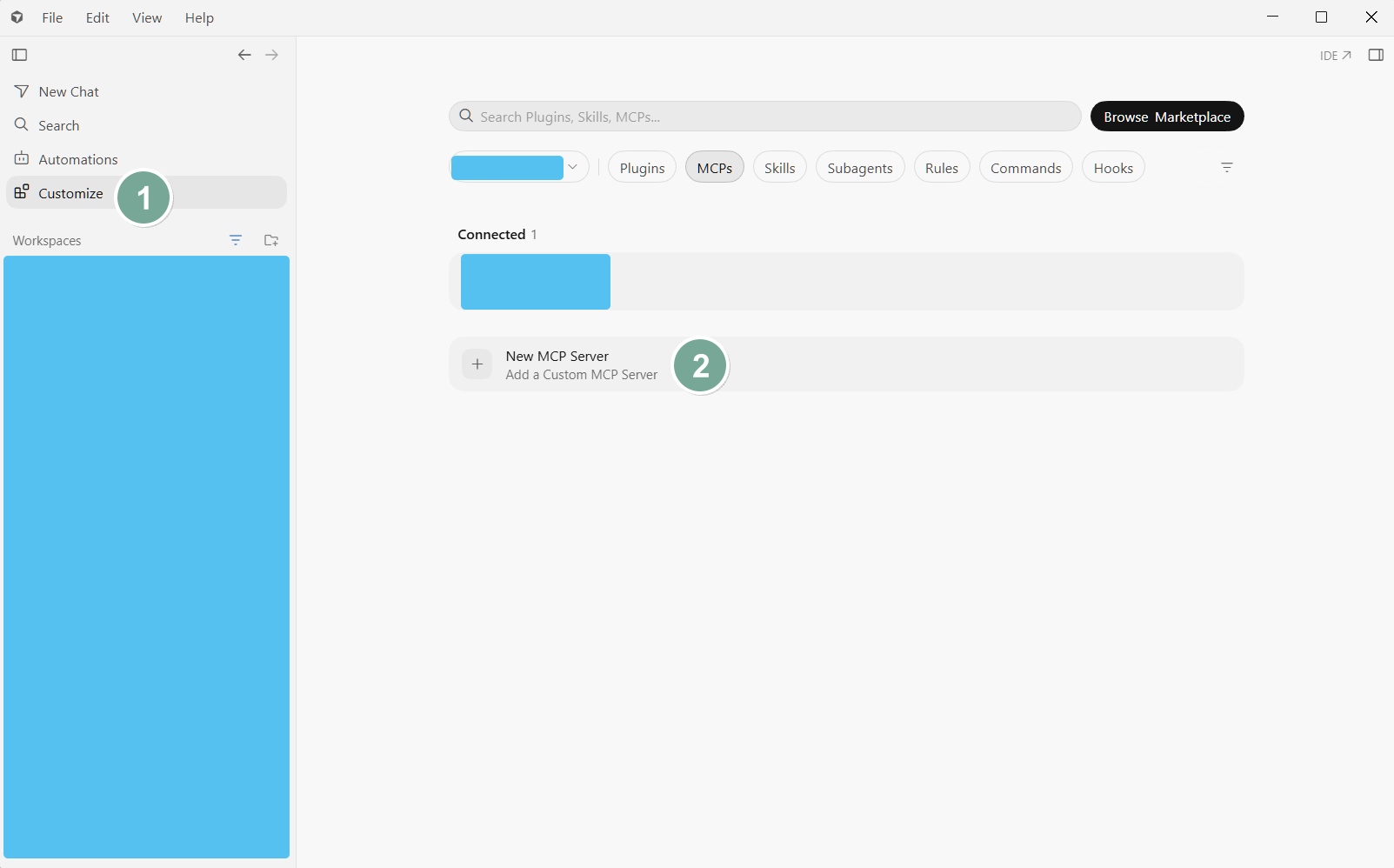
When the scope menu appears, pick User, not a workspace, so every project can use it.
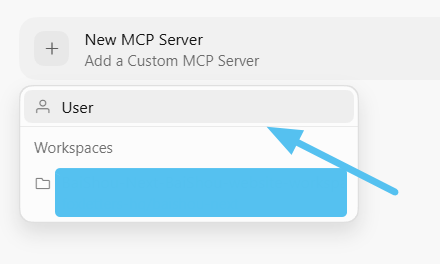
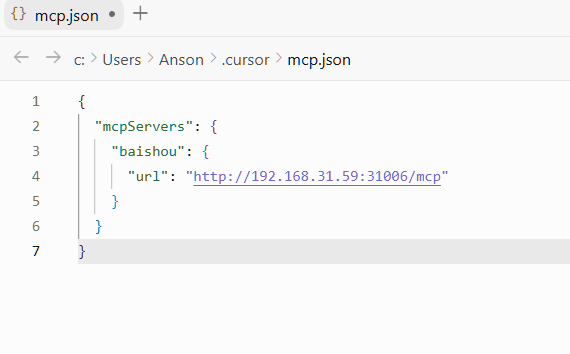
This opens %USERPROFILE%\.cursor\mcp.json (macOS / Linux: ~/.cursor/mcp.json). Add BaiShou under mcpServers, using the URL from your MCP page:
{
  "mcpServers": {
    "baishou": {
      "url": "http://127.0.0.1:31004/mcp"
    }
  }
}
Same computer: 127.0.0.1. If BaiShou authentication is on, add headers.Authorization. Save the file.
Back on the MCPs list, BaiShou should show as connected with 14 tools enabled.
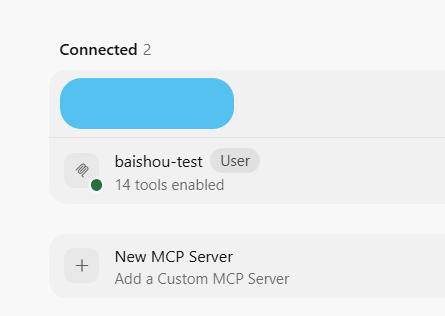
If you see 0 tools: is BaiShou running, does the URL end with /mcp, and does the token match? See MCP server.
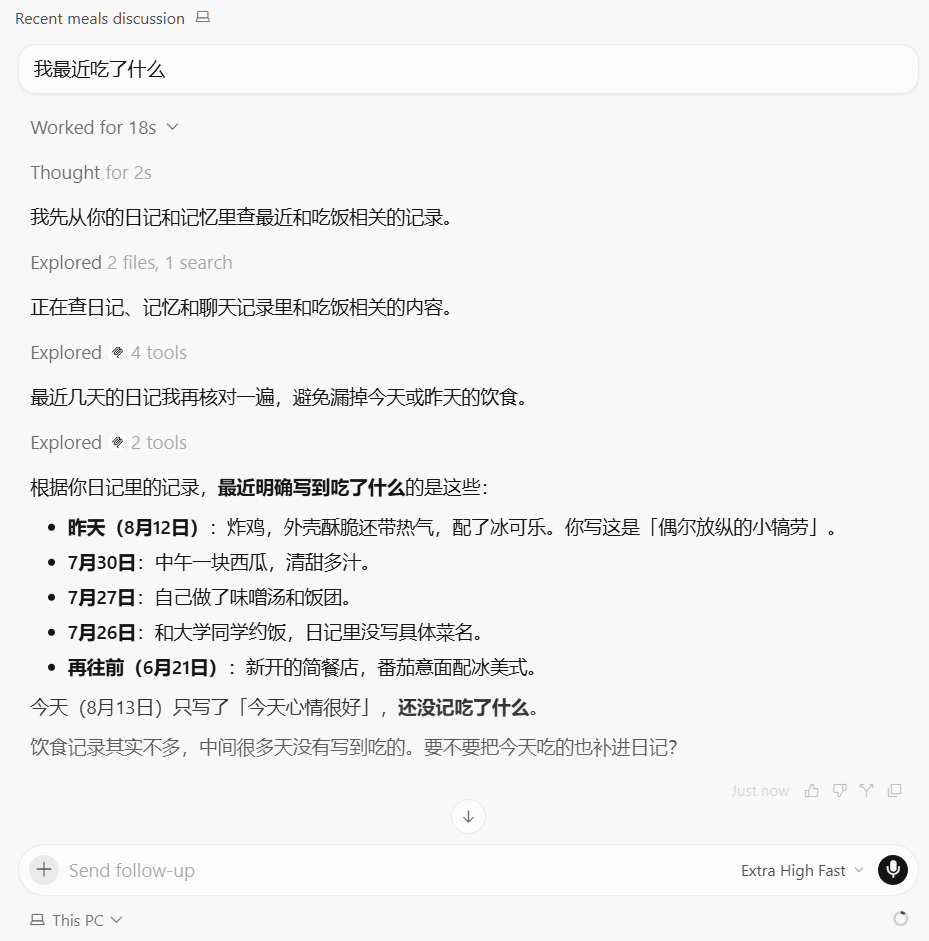
Start a new chat and ask “what have I eaten lately?” If it lists meals from your diary, the tools are working.